If you’ve been reading this blog for any length of time, you know I’m a big fan of self-hosting. I run my own email server, my own DNS, my own media stack, and just about anything else I can keep off the cloud and under my own roof. One of the absolute crown jewels of my homelab is Mailcow, the open-source, Dockerized email suite that handles all of my personal email. It’s been rock solid, endlessly configurable, and honestly one of the best pieces of self-hosted software I’ve ever used.
One of the features of Mailcow I so apprecaite, is its ability to create email aliases on the fly through its API. If you’re not familiar with the concept, disposable aliases let you hand out a unique email address to every service, store, or website you sign up for. If one of them starts spamming you or gets compromised in a data breach, you just disable that alias and move on with your life. No harm to your real inbox. It’s a simple idea, but it’s incredibly powerful for keeping your email clean and your privacy intact. It’s so powerful, Apple has a similar feature for iCloud email accounts called “Hide my email” (with some limitations).
The Problem: Safari Users Left Out in the Cold
For a while now, there’s been a fantastic browser extension by jonerrr on GitHub that makes creating Mailcow aliases a breeze in Chrome and Firefox. Right-click on any page, generate an alias, and it’s copied to your clipboard. Simple, fast, and exactly what you want. I used it and loved it.
But here’s the thing: I’m a Safari user. And if you know anything about Safari extensions, you know they live in their own little world. Apple requires Safari extensions to be built as native apps, signed with a developer certificate, and distributed through the App Store. There’s no sideloading a Chrome extension and calling it a day. So I found myself constantly switching to another browser just to generate aliases, which was never going to something I would be willing to do long-term.
That’s when I decided to do what any sensible maker would do: build my own.
Building a Native Safari Extension (From Scratch)
I want to be upfront here: this was my very first macOS/iOS application. I’d never built anything for the Apple ecosystem before. No Swift experience, no Xcode projects under my belt, no prior dealings with the App Store review process. I was starting from zero.
The learning curve was real. Between understanding the Safari Web Extension architecture, getting the app sandboxing right, dealing with Apple’s code signing requirements, and figuring out how Xcode actually works, there were plenty of moments where I wasn’t sure this was going to come together. But piece by piece, it did.
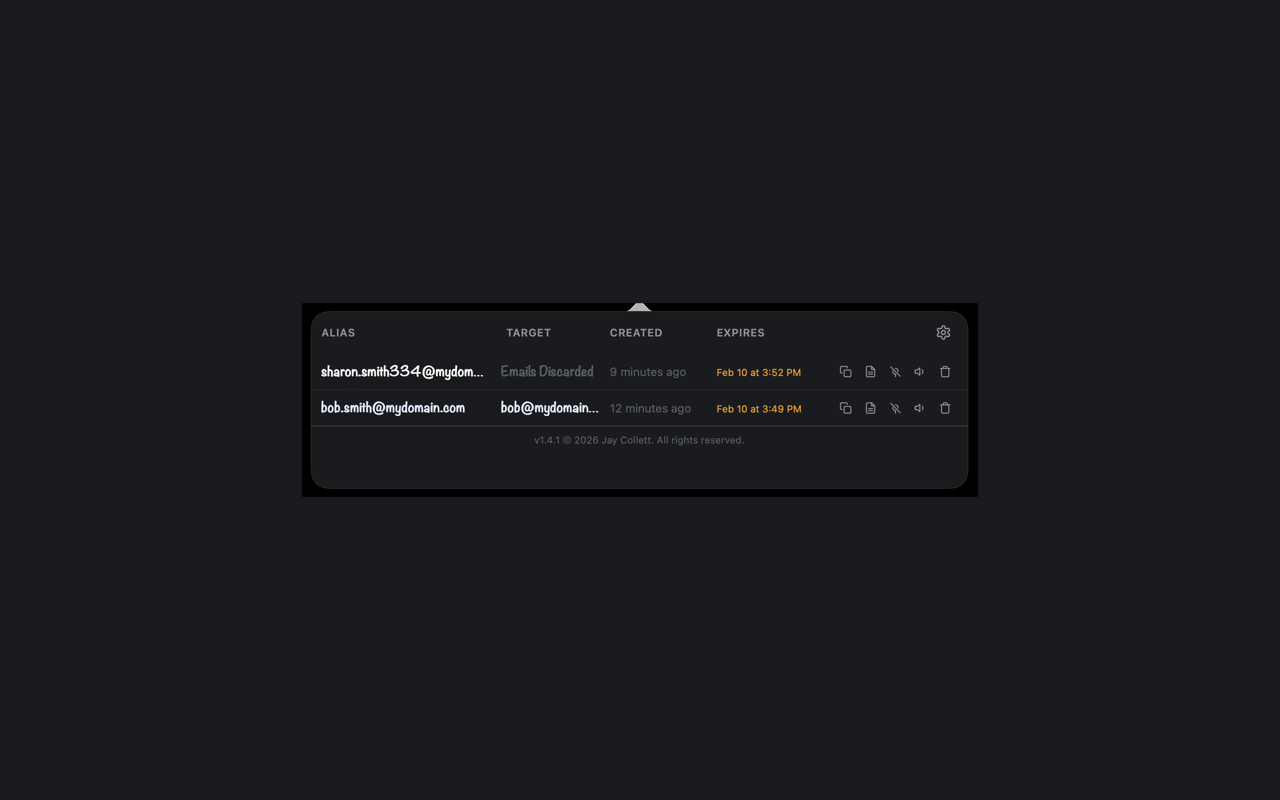
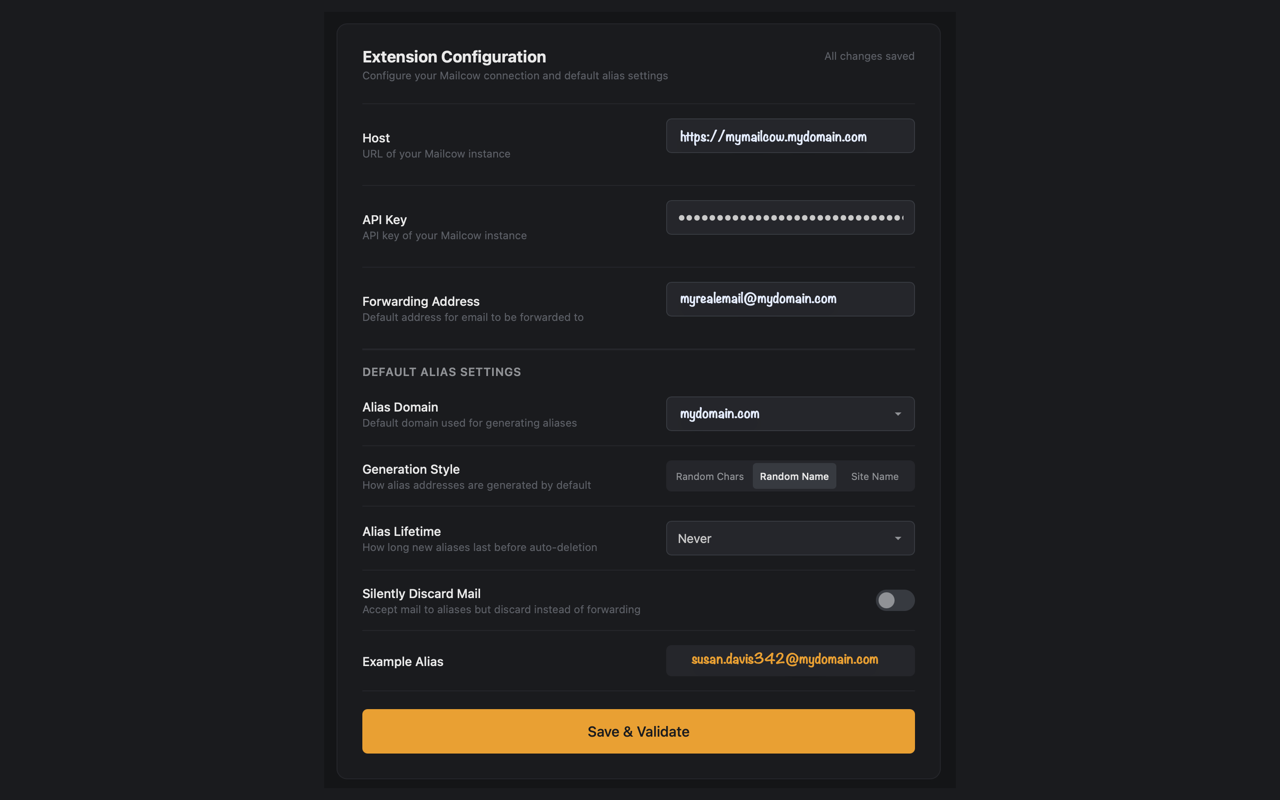
The extension, called Mailcow Aliases, connects directly to your self-hosted Mailcow server through its API. Everything stays between your device and your server. No third-party services, no cloud accounts, no data collection. Just you and your Mailcow instance.
What It Does
I wanted this to be genuinely useful, not just a bare-bones proof of concept. Here’s what I packed into it:
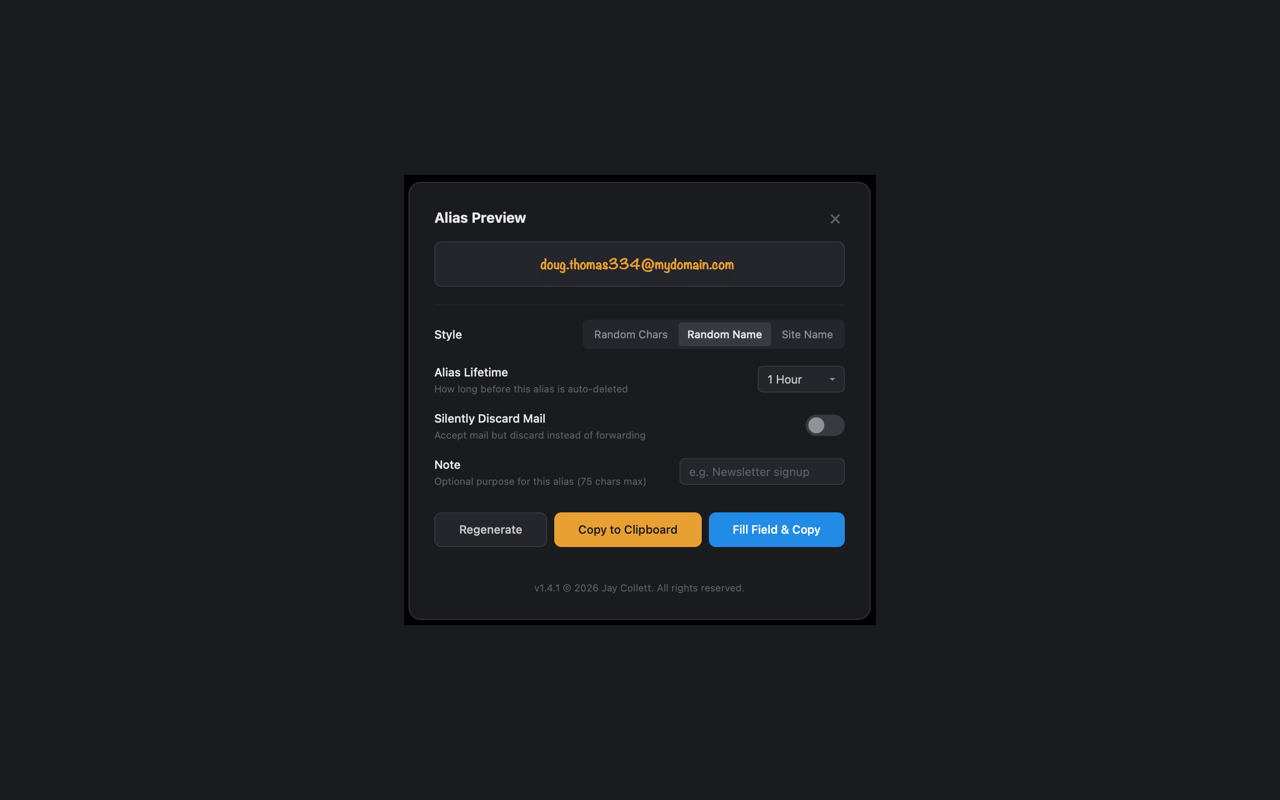
- One-click alias generation – Right-click on any webpage on macOS or tap the toolbar button on iOS/iPadOS to instantly create a new alias
- Three alias styles – Generate random characters, realistic-looking names, or aliases based on the site you’re visiting
- Auto-fill email fields – The extension can automatically fill in email form fields on the page with your freshly generated alias
- Expiration lifetimes – Set aliases to automatically expire and clean themselves up after a set period
- Silent discard mode – Quietly reject mail to an alias instead of bouncing it, so spammers don’t even know the address is dead
- Notes on each alias – Add a quick note so you remember why you created it six months from now
- Full alias management – View, enable, disable, and delete your aliases right from the toolbar popup
- Multiple domain support – If you run multiple domains on your Mailcow instance, the extension handles that
- iCloud sync – Your extension settings sync across your Apple devices
- Dark theme – Because of course

It runs on macOS 13+, iOS 16.4+, and iPadOS 16.4+, so it covers pretty much any reasonably current Apple device.
Getting Into the App Store
I’ll be honest, getting through the App Store review process was an experience all on its own. Apple doesn’t mess around with their review guidelines, and as a first-time developer on the platform, I had a lot to learn about what they expect in terms of app metadata, privacy disclosures, screenshots, and general compliance. There were a few rounds of back and forth, but eventually, the app was approved and published for MacOS and iOS!
Seeing my app live in the App Store for the first time was a genuinely proud moment. It might sound small in the grand scheme of things, but going from “I’ve never built an Apple app” to “my app is published and available worldwide” felt like a real accomplishment. It’s not easy to get things through Apple’s review process, and I’m glad I stuck with it.
Why $0.99?
You might notice the extension costs $0.99 USD. I want to be transparent about that. Apple charges $99 per year for a developer license, which is required to publish anything on the App Store. The $0.99 price tag is simply to help offset that annual cost. I’m not trying to build a business here. I built this because I needed it, and I figured other Mailcow users running Safari would need it too.
If You Don’t Use Safari
If you’re a Chrome or Firefox user, I’d absolutely recommend checking out jonerrr’s Mailcow Alias Extension. It’s open source, free, and does a great job. It was honestly the inspiration that made me realize a Safari version needed to exist. The more people protecting their email with disposable aliases, the better.
Give Mailcow a Shot
If you run a homelab and you haven’t tried Mailcow yet, I genuinely encourage you to give it a go. Yes, self-hosting email is one of those things people love to warn you about, and it’s true that it takes some effort to get everything set up properly (DNS records, reverse DNS, DKIM, SPF, DMARC, the whole alphabet soup). But once it’s running, it’s incredibly rewarding to have full control over your email. No one is scanning your messages to serve you ads, no one is training AI models on your correspondence, and no one can lock you out of your own account. Your email, your server, your rules.
Mailcow makes the whole process far more approachable than running raw Postfix and Dovecot. It’s a well-maintained, Dockerized stack with a clean web UI, built-in spam filtering, and that excellent API that makes extensions like this one possible.
Get the Extension
If you’re a Safari user with a Mailcow instance, you can grab the extension here:
Mailcow Aliases on the App Store
And if you’re on Chrome or Firefox:
jonerrr’s Mailcow Alias Extension on GitHub
Overall, I’m really proud of how this turned out. Going from zero experience with Apple development to a published App Store product was a challenge, but it’s the kind of challenge that reminds me why I love tinkering and building things. If this extension helps even a handful of fellow Mailcow users protect their inboxes a little better, then it was absolutely worth the effort.